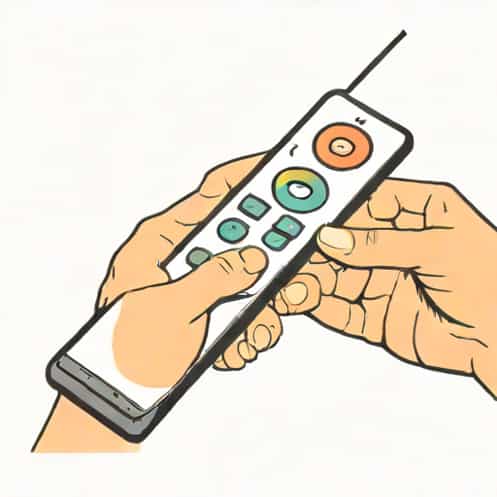
Many households rely on the Astound remote control every day, yet many users never fully explore its features. Learning how to use the Astound remote control properly can make TV viewing smoother, faster, and far more convenient. By understanding the buttons, pairing options, navigation methods, and troubleshooting tips, you can get the most out of your TV experience without unnecessary frustration. A well-used remote control can simplify switching channels, adjusting settings, exploring apps, and managing your entertainment system with ease.
Understanding the Layout of the Astound Remote Control
Before using the remote, it helps to become familiar with its layout. The design is intended to be simple, with buttons grouped according to their function.
Main Power Button
The power button turns your TV or cable box on and off. On most Astound remotes, it sits at the top and may control multiple devices once paired correctly.
Navigation Buttons
In the center area, you’ll find directional arrows and an OK or Select button. These let you move through menus, highlight channels, and confirm selections.
Volume and Channel Controls
Volume buttons adjust sound levels, while channel buttons scroll up or down through the channel list. They are typically placed in the middle for easy reach.
Number Pad
The number pad allows you to directly enter channel numbers. This feature is useful for quickly switching to a specific channel without browsing.
Guide and Menu Access
The Guide button opens the on-screen channel guide for TV listings. The Menu button takes you to system options where you can adjust parental controls, language, and other settings.
Setting Up the Astound Remote Control
To use the Astound remote to its fullest potential, you should begin with proper setup. Pairing the remote with your TV ensures that functions such as power, volume, and input control work smoothly.
Check Batteries First
Insert fresh batteries into the remote. Weak batteries can cause delayed responses or button failures, so starting with new ones is always recommended.
Pairing the Remote to Your TV
Most Astound remotes can be paired manually or automatically, depending on the model.
-
Turn on your TV and cable box.
-
Press and hold the Setup button until the LED light turns solid.
-
Enter the code for your TV brand if required.
-
Test power and volume buttons to confirm pairing.
If the code does not work, try the automatic search method by holding Setup, then pressing the Power button repeatedly until the TV turns off.
Navigating the On-Screen Guide
Once your remote is paired, navigating the guide is one of the most useful functions you’ll learn.
Opening the Guide
Press the Guide button to bring up program listings. The guide displays channels, upcoming shows, current programming details, and more.
Scrolling Through Listings
Use the arrow buttons to scroll up, down, left, or right. Scrolling left and right lets you move through time slots, while up and down allows you to browse channels.
Selecting a Program
Highlight a program and press OK to view information or tune to the channel. This feature is especially helpful when browsing for something new to watch.
Using Common Functions on the Remote
The Astound remote offers several practical features that help simplify everyday TV use. Understanding these features ensures a smoother viewing experience.
Changing Channels
You can change channels in three ways using channel up/down buttons, entering a channel number directly, or selecting one from the on-screen guide.
Adjusting the Volume
Volume up/down buttons adjust sound levels. Mute instantly silences the TV useful when taking phone calls or pausing a conversation.
Accessing Settings
The Menu button provides access to audio settings, closed captions, parental controls, and device settings. Use the arrow keys to explore options.
Using the Info Button
The Info button displays a summary of the current program. It shows details like title, duration, description, and rating.
Advanced Features to Enhance Your Experience
Beyond the basic functions, the Astound remote control includes additional tools that can make navigation quicker and more intuitive.
Favorites List
You can add channels to your favorites list for quick access. This is ideal if you regularly switch between a handful of preferred channels.
Input Selection
The Input or Source button lets you switch between devices connected to your TV, such as streaming boxes, gaming consoles, or DVD players.
DVR Controls
If your service includes a DVR, the remote has playback buttons that let you pause, rewind, fast-forward, or record live programs.
-
Play/Pause controls playback
-
Rewind/Fast Forward moves through recorded content
-
Record begins saving a program instantly
Troubleshooting Common Remote Issues
If your Astound remote control is not working correctly, troubleshooting can often resolve the issue without needing technical assistance.
Remote Is Not Responding
Check the batteries first. If they are new, try pointing the remote directly at the device and removing any obstacles blocking the signal.
Buttons Respond Slowly
This may be caused by low battery power or an overloaded system. Restart your cable box by unplugging it for a few moments and try again.
Volume or Power Controls Do Not Work
This usually means the remote is not fully paired with the TV. Repeat the pairing steps to re-establish connection.
Guide Not Loading
Try refreshing your connection by restarting your cable box and checking the signal strength. Navigation should return to normal once the system updates.
Tips for Using the Remote More Efficiently
Once you understand how to use the Astound remote, a few habits can help you get even better results and smoother control.
Keep the Remote Clean
Dirt between the buttons can affect performance. Wipe the remote periodically with a dry cloth to keep it functioning well.
Point Toward the Receiver
Even though the remote has a strong signal, pointing toward the cable box or TV sensor ensures faster response times.
Use the Guide for Planning
The on-screen guide is not only for channel browsing. Use it to schedule recordings, set reminders, or check future programming.
Learning how to use the Astound remote control can truly improve your home entertainment experience. The remote offers a wide range of features, from simple channel changes to advanced DVR controls, making it a versatile and convenient tool. By understanding its layout, pairing it correctly, navigating the guide, and using advanced functions, you can enjoy seamless control of your TV system. With a little practice, the remote becomes intuitive and easy, helping you enjoy your favorite shows with minimal effort.