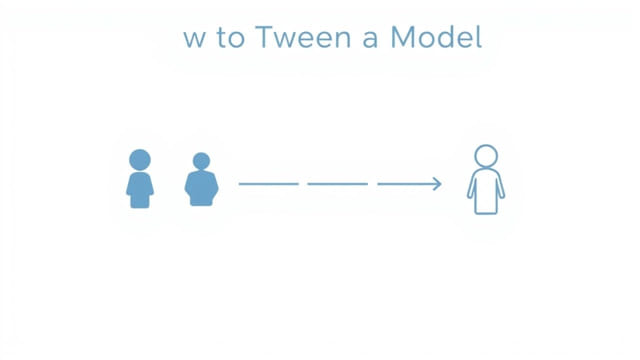
Animation has become an essential aspect of digital design, game development, and user interface experiences. One key technique used to create smooth motion and realistic transitions is tweening. If you are new to animation or 3D modeling, you might be wondering how to tween a model effectively. Tweening is the process of generating intermediate frames between two states of an object to create the illusion of movement or transformation. In this guide, you will learn what tweening is, why it is important, and how to apply it when animating a model in various software environments.
What Does Tweening Mean?
The term tweening comes from the word in-betweening, a traditional animation concept where animators draw frames between key poses. In digital animation, tweening automates this process by interpolating frames between two or more keyframes. The software calculates the motion path, making animations smooth and efficient.
Why Tweening Matters in Animation
Without tweening, animators would have to manually create every frame of a transition, which is time-consuming and less efficient. Tweening provides several benefits:
- Efficiency: Reduces manual labor in animation workflows.
- Smooth Motion: Ensures fluid movement between poses.
- Consistency: Maintains uniform motion across frames.
How to Tween a Model: A Step-by-Step Guide
Different software platforms use tweening for both 2D and 3D animation, but the process shares common principles. Here’s a general approach to tweening a model:
Step 1: Prepare Your Model
Before tweening, ensure your model is properly set up. This includes having the necessary joints, bones, or control points if you are working in 3D. In 2D animation, make sure the object or character is ready for transformations like movement, scaling, or rotation.
Step 2: Set the Initial Keyframe
Place your model in the starting position and create the first keyframe. A keyframe is a frame that defines a specific value of properties such as position, rotation, or scale. Most animation software allows you to insert a keyframe by selecting the property and pressing a shortcut like Insert Keyframe.
Step 3: Define the Final Keyframe
Move your timeline to the point where the motion should end and adjust your model to its final state. Insert another keyframe to lock in these properties. For example, if you want the model to move from left to right, set the starting position on the left and the ending position on the right.
Step 4: Apply Tweening
Once the starting and ending keyframes are set, apply tweening. Most tools, such as Adobe Animate, After Effects, or game engines like Unity, have options to add motion tweens or interpolation. This creates the in-between frames automatically.
Types of Tweening for Models
When tweening a model, you can use different types of interpolation depending on the desired effect:
- Linear Tween: Creates motion at a constant speed, suitable for simple movements.
- Ease-In and Ease-Out: Slows down at the start or end for a natural feel.
- Custom Easing: Lets you define acceleration curves for more dynamic motion.
- Shape Tween: Morphs shapes smoothly from one form to another (common in 2D).
Tweening in Different Software
The process of tweening can vary depending on the application:
Adobe Animate
In Adobe Animate, right-click between two keyframes on the timeline and selectCreate Motion Tween. This generates the transition automatically. You can adjust easing options for more natural motion.
Blender (3D)
In Blender, tweening is called interpolation. After setting keyframes, go to the Graph Editor to customize the interpolation curve, allowing you to add easing and realistic motion to your model.
Unity (Game Development)
In Unity, tweening is often handled by scripts or tweening libraries such as DOTween. These tools allow you to animate properties like position and rotation smoothly over time with custom easing options.
Advanced Tweening Techniques
To make your animations stand out, you can apply more advanced tweening strategies:
- Multiple Keyframes: Add more than two keyframes to create complex motion paths.
- Non-Linear Movement: Use curves to create arcs for realistic movement.
- Secondary Motion: Apply subtle movements to other parts of the model for a natural effect.
Combining Tweening with Other Effects
Tweening works best when combined with other animation principles like scaling, rotation, and opacity changes. For instance, when moving a character, you can add slight rotation and scaling to mimic perspective.
Common Mistakes to Avoid
While tweening simplifies animation, beginners often make errors that affect the quality of the animation:
- Overusing Linear Tween: Results in robotic motion. Use easing for natural movement.
- Ignoring Timing: Make sure the duration between keyframes matches the desired speed.
- Lack of Anticipation: Good animations include anticipation and follow-through for realism.
Tips for Effective Tweening
If you want professional-looking results, follow these tips:
- Always preview your animation to check for smoothness.
- Use easing curves to make motion more realistic.
- Keep keyframes organized to avoid confusion on complex timelines.
Applications of Tweening in Animation
Tweening is used in various fields, including:
- 2D Animation: For cartoons and interactive media.
- 3D Modeling: To animate characters, objects, and cameras.
- Web Design: CSS and JavaScript animations rely on tweening principles.
- Game Development: Smooth UI transitions and character motions use tweening.
Understanding how to tween a model is a fundamental skill in animation, whether you are creating 2D or 3D content. Tweening saves time, ensures smooth transitions, and provides flexibility in motion design. By setting keyframes, applying interpolation, and customizing easing, you can create animations that look professional and dynamic. Remember to combine tweening with other animation techniques for the best results. With practice, you’ll be able to bring your models to life effortlessly and create engaging visuals for games, videos, and interactive designs.