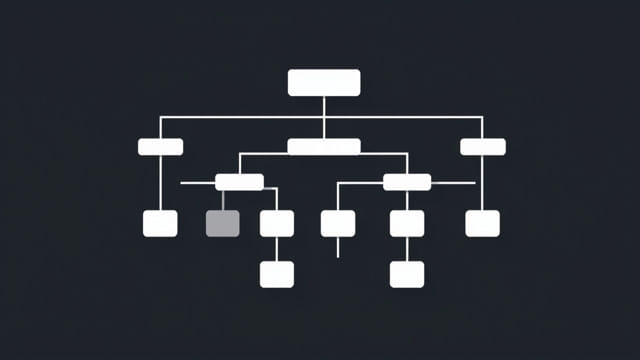
Creating an effective organizational chart is essential for presenting company structure, roles, and reporting lines clearly. In business meetings, project planning sessions, or HR presentations, a well-designed org chart helps teams understand how a company is organized. Using a free organizational chart template for PowerPoint is one of the easiest ways to achieve this without starting from scratch. These templates offer flexibility, are easy to customize, and save valuable time for professionals who need to convey complex structures in a simple and visual format.
What Is an Organizational Chart?
Definition and Purpose
An organizational chart is a diagram that visually outlines the internal structure of a company, department, or project team. It illustrates relationships between employees, departments, and leadership levels. Typically, it shows who reports to whom and highlights the hierarchy within an organization.
Common Types of Org Charts
- Hierarchical chart: The most traditional format, displaying a top-down structure.
- Matrix chart: Represents dual reporting relationships, often used in project-based environments.
- Flat chart: Depicts fewer levels of management, common in startups or modern workplaces.
Depending on the business model, teams can choose a template that fits their management style and communication needs.
Benefits of Using Free Organizational Chart Templates in PowerPoint
1. Time-Saving and Easy to Edit
Pre-designed templates eliminate the need to start from a blank slide. They offer formatted layouts with placeholder text, allowing users to plug in team names, titles, and departments without spending hours on design. These templates are especially helpful for HR professionals, team leads, and project managers.
2. Professional Appearance
Templates come with clean, structured layouts that make the org chart look polished and professional. Many are compatible with corporate branding, allowing users to add logos, adjust colors, and match fonts easily within PowerPoint’s tools.
3. Visual Clarity
Using boxes, lines, and consistent formatting, org chart templates provide clarity. Instead of trying to describe roles in bullet points or tables, a visual diagram simplifies communication, making it easier for stakeholders to grasp relationships and hierarchies at a glance.
4. Compatibility and Accessibility
PowerPoint is widely used in organizations. Sharing an org chart created with PowerPoint is convenient, as recipients are likely to have compatible software. It also integrates well with other Office tools, such as Word or Excel, for further reporting.
Key Features to Look for in a Template
Layout Flexibility
- Ability to add or remove boxes without disrupting the layout
- Support for multiple levels and sub-hierarchies
- Options for horizontal or vertical structures
Design Elements
- Icons or profile image placeholders
- Color-coded departments
- Customizable fonts and shapes
Ease of Customization
- Drag-and-drop editing
- Built-in instructions or tips on how to use the layout
- Compatibility with PowerPoint SmartArt tools
These elements ensure that your template can adapt to different team sizes and evolving business structures without requiring design expertise.
Use Cases for PowerPoint Organizational Chart Templates
Human Resources
HR teams often use org charts during onboarding, restructuring, and internal communications. A template allows them to introduce departments and leadership roles efficiently. It also helps new hires understand reporting relationships and navigate the corporate structure.
Team Management
Project managers use org charts to define team responsibilities, especially when managing cross-functional teams. It can be useful for clients, vendors, or internal stakeholders who need to understand the project’s personnel organization.
Executive Presentations
During board meetings or stakeholder briefings, executives present the company’s structure to highlight leadership, recent changes, or future hiring plans. An org chart helps visualize these aspects quickly and effectively.
Tips for Customizing Your Template
Use Accurate Job Titles
Ensure each position listed matches the official job title used in your organization. Consistency prevents confusion, especially in large organizations where similar roles may exist in different departments.
Keep It Simple
A cluttered org chart can confuse your audience. Focus on essential reporting lines and keep text brief. Use icons or initials for space efficiency if necessary.
Update Regularly
Company structures evolve. Make it a habit to update your organizational chart periodically. This ensures accuracy for onboarding, team updates, or strategic presentations.
Use Brand Colors and Fonts
Aligning your org chart with company branding reinforces professionalism. Customize colors, fonts, and layout elements to reflect the organization’s identity.
How to Use a PowerPoint Organizational Chart Template
Step-by-Step Instructions
- Download a compatible PowerPoint template file.
- Open it in PowerPoint and review the layout options.
- Edit placeholders with department names, job titles, and employee names.
- Insert profile photos or icons where applicable.
- Customize colors and fonts to match company branding.
- Add or remove elements based on the team’s structure.
- Save the file and export to PDF if needed for easy sharing.
Even users with basic PowerPoint knowledge can follow these steps and build a compelling chart in minutes.
Popular Styles of Org Chart Templates
Modern Minimalist
Designed with clean lines and minimal color, this layout focuses on simplicity and elegance. Great for tech startups and design-conscious companies.
Corporate Professional
Uses standard fonts, company colors, and straightforward box layouts. Ideal for formal reports and business presentations.
Creative Flowchart
Incorporates arrows, icons, and flexible shapes. Suitable for creative agencies or companies with non-traditional hierarchies.
Advantages of PowerPoint Over Other Tools
While there are many chart-building tools available, PowerPoint remains a preferred platform because it is:
- Familiar to most office users
- Compatible with other Office files
- Easy to use without additional software installation
- Highly customizable with SmartArt and design tools
These advantages make PowerPoint a versatile tool for building, editing, and sharing organizational charts in a professional context.
A free organizational chart template for PowerPoint is a powerful resource for anyone looking to visualize team structures quickly and professionally. It helps HR departments streamline onboarding, assists project managers in coordinating teams, and provides clarity in executive communication. With customizable layouts, ease of use, and compatibility with standard business tools, PowerPoint templates remain one of the most effective ways to create and present organizational charts. By choosing the right template and keeping your chart updated, you can ensure that your presentations always reflect the most accurate and polished version of your company’s structure.